Your QuickBooks integration probably handles new records and updates just fine. But what happens when someone deletes an invoice or removes a line item? For most integrations, the answer is nothing, and that silence is exactly where data integrity starts to fall apart. Here's how to make sure your sync actually catches deletions before they cause problems you'll spend days untangling.
TL;DR: QuickBooks won't tell you when a record is deleted, so you have to build the detection logic yourself (CDC for QBO, snapshot diffing for Desktop), or use hotglue, which supports both and lets you define deletion handling in versioned Python ETL scripts.
Why Deleted Records Are a Silent Killer for QuickBooks Integrations
Inserts and updates announce themselves. A new invoice appears, a payment amount changes, your sync picks it up. Deletions are quieter. When a record disappears from QuickBooks, most integrations don't notice. They keep serving stale data downstream until a customer calls asking why a voided invoice still shows up in their dashboard.
That gap between what QuickBooks holds and what your system believes is true is where data integrity breaks down. Revenue figures look off. Reconciliations fail. Support tickets pile up. And the root cause is rarely obvious, because the data that caused the problem no longer exists. (Turns out, debugging something that isn't there is every bit as fun as it sounds.)
This is squarely an engineering problem, but it lands on the desks of CPOs and Heads of Partnerships the moment a customer calls to ask why their voided invoice is still showing up in your product. Whoever owns the QuickBooks integration owns this.

How QuickBooks Handles Deletion Differently Than You'd Expect
QuickBooks doesn't fire a deletion event or flag a missing record ID the way most engineers expect. In QuickBooks Online, deleted records only surface with a status: Deleted field when queried through Change Data Capture. A standard query skips them entirely. No tombstone, no error, just silence.
According to the QBO CDC documentation, CDC tracks changes within the last 30 days, with a maximum of 1,000 objects per response. Miss that window and the deletion disappears from the API record entirely. QuickBooks Desktop lacks a native CDC mechanism altogether, which creates a separate class of problems covered in our QuickBooks integration guide for integrations built on naive polling.
QuickBooks Online vs Desktop: Two Deletion Models, Two Sets of Gotchas
QBO and QuickBooks Desktop don't share a deletion model, so a sync strategy built for one will quietly fail on the other.
With QBO, deletions surface through the CDC endpoint as status: Deleted, but only if you query within a 30-day window and only up to 1,000 objects per response. Poll too infrequently or hit that object cap, and deleted records vanish without a trace, a tradeoff worth weighing alongside your broader QuickBooks API usage strategy.
QuickBooks Desktop has no CDC equivalent. The Web Connector uses XML-based queries that return only what currently exists, so if a record was deleted between syncs, your integration has no way to know. You have to infer it by comparing what the connector returns against your last known state, which requires deliberate snapshot logic.
| QBO | QuickBooks Desktop | |
|---|---|---|
| Deletion signal | status: Deleted via CDC | None natively |
| Detection method | CDC query within 30-day window | State comparison against snapshots |
| Object cap per response | 1,000 | N/A |
| Risk if window missed | Deletion lost permanently | Stale records persist indefinitely |
What Actually Gets Deleted in QuickBooks and When
Not every QuickBooks entity behaves the same way when deleted, and that inconsistency will bite you if you assume uniform coverage.
For QBO, CDC returns status: Deleted for most transactional entities like invoices, payments, and bills. But the CDC documentation explicitly excludes several entity types from CDC entirely: JournalCode, TaxAgency, TimeActivity, TaxCode, and TaxRate. If any of those disappear, your integration won't hear about it through CDC at all.
Partial deletions are trickier. If a user removes a single line item from an invoice, CDC only returns the updated parent invoice, not a discrete deletion event for that line. Your sync logic has to diff the line items between the previous and current state to catch what's gone. Most integrations skip this step, which means removed line items persist downstream indefinitely.
Design your deletion handling per entity type as part of a broader plan to integrate QuickBooks with your SaaS product, and never assume that CDC silence means nothing changed.
The Four Failure Modes When Deletions Go Unhandled
| Failure Mode | What Happens | Who Feels It |
|---|---|---|
| Orphaned records | Deleted customers or vendors persist in your system with no parent in QBO | Engineering and CS teams chasing ghost records |
| Stale financial data | Voided invoices still appear in revenue reports | Finance teams running month-end close |
| Referential integrity violations | A deleted customer still has open invoices referencing them downstream | Anyone running AR aging or collections logic |
| Reconciliation mismatches | Your system and QBO totals diverge, triggering audit flags | Accountants and auditors |
Each of these starts small. One voided payment that doesn't propagate. One deleted vendor that lingers. Compound them across hundreds of tenants over months and you get dashboards that can't be trusted and reconciliations that take days to untangle instead of hours.
Soft Delete vs Hard Delete: Choosing the Right Propagation Strategy
Two strategies exist for propagating a QuickBooks deletion downstream, and picking the wrong one creates problems that are painful to undo.
A soft delete marks the record as inactive or adds a deleted_at timestamp without removing it. Audit trails stay intact, referential integrity holds, and recovery is simple. The tradeoff is data bloat and downstream queries that need to filter out deleted rows consistently.
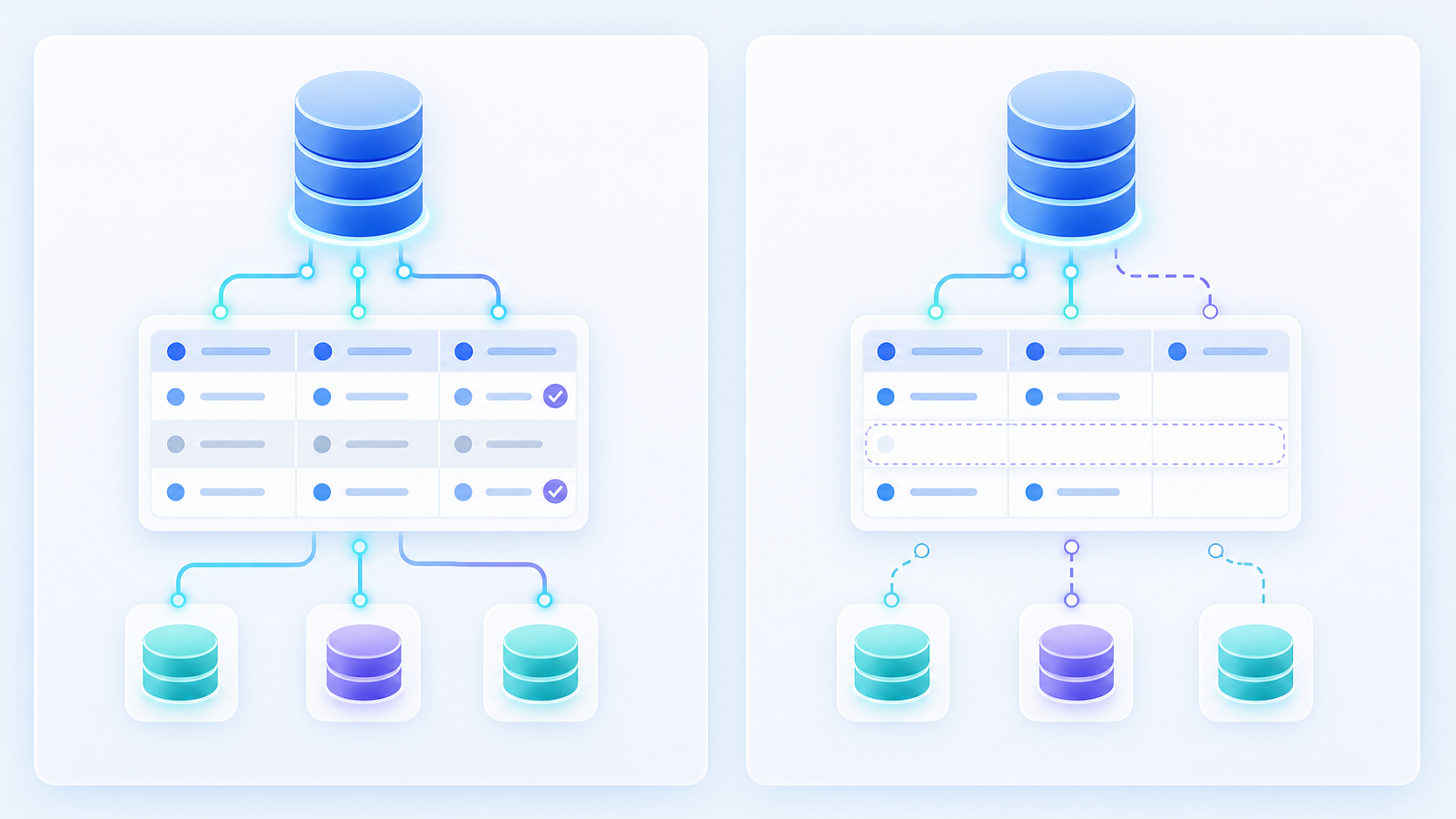
A hard delete physically removes the record. Clean and minimal, but if anything downstream referenced it (including records you've loaded via importing CSV data into QuickBooks), you now have broken foreign keys and no recovery path without a backup.
As Streamkap's CDC guide notes, most analytics destinations are append-only or handle deletes differently than the source, which makes soft deletes the safer default for reporting pipelines. Hard deletes make more sense for transactional systems where stale records actively cause problems, like deduplication or billing logic.
A third option worth considering: an archival table. Instead of flagging or removing records in place, you move deleted records to a separate store. This keeps your active dataset clean while preserving history for audits without complicating every query with a WHERE deleted_at IS NULL clause.
Using QuickBooks CDC to Detect Deletions in Incremental Syncs
The CDC endpoint is your only reliable deletion signal in QuickBooks Online. Query it with a changedSince timestamp from your last successful sync, then scan each entity response for "status": "Deleted" and propagate accordingly.
Two constraints govern everything: the 30-day lookback window and 1,000-object cap. Exceed either and deletions disappear permanently. Sync at least daily, and paginate with shorter time windows when change volume is high.
Handling Deletions in QuickBooks Desktop Integrations
Without CDC, QuickBooks Desktop forces you to detect deletions the hard way through our QuickBooks Desktop Web Connector: compare what exists now against what existed before.
The two main approaches each come with real tradeoffs worth knowing before you commit to one.
Snapshot Diffing vs. Audit Log Parsing
Full snapshot diffing is the most reliable method. You pull a complete extract from Desktop, compare every record ID against your stored prior snapshot, and flag anything missing. What's gone is deleted. The catch: full extracts on large company files take longer, so you'll want to pace how often you run them.
Audit log parsing is a lighter alternative. QuickBooks Desktop maintains an audit trail that captures deletion events, but accessing it programmatically is inconsistent across Desktop versions, and the log rarely includes enough context to map deleted records cleanly to downstream systems.
The Web Connector model compounds both problems. It returns only currently active records, giving you zero deletion signal out of the box. All detection logic has to live outside the connector in your state management layer, which means more custom code per tenant and higher ongoing maintenance costs than equivalent QuickBooks Online integrations.
State Management and Snapshots: The Foundation of Reliable Deletion Handling
Snapshots solve a problem that CDC cannot: they give you a ground truth for what existed before, so anything absent afterward is a deletion by definition.
The pattern is straightforward. After each successful sync, persist a set of record IDs and their key metadata to a snapshot store. On the next run, diff the current extract against that stored state. Missing IDs are deleted records. Updated checksums are modifications. New IDs are inserts. No guessing, no silent gaps.
Designing this to stay performant at scale takes some care:
- Store only the fields you need for diffing (IDs, checksums, timestamps) and skip full payloads, so your snapshot store stays lean.
- Partition by tenant and entity type so diffs stay scoped and fast, even as your customer count grows.
- Expire snapshots on a rolling window aligned to your retention policy to prevent unbounded storage growth.
The one failure mode to guard against: if a sync job fails mid-run and you overwrite the prior snapshot anyway, you lose your baseline. Always write new snapshots atomically, only after a job completes successfully. Partial state is worse than stale state.
Testing Your Deletion Logic Before It Hits Production
Most teams only test the happy path: records appear, records update, reports match. Testing what happens when a record disappears takes deliberate setup, and most teams skip it until a customer finds the problem first.
A practical checklist to run in your QuickBooks sandbox before shipping:
- Void a transaction and verify your integration treats it differently from a full delete: voided invoices stay in QBO with their amounts zeroed out, so some downstream systems should mirror that instead of removing the record
- Hard delete a transaction and confirm
status: Deletedappears in your next CDC response - Delete a line item within an existing invoice without deleting the parent, then verify your sync diffs line items and removes the orphaned row downstream
- Reactivate a previously deactivated vendor or customer and confirm your system restores the existing record instead of re-creating it
- Simulate missing the CDC 30-day window by testing your fallback path: what does your integration actually do when the deletion signal is gone?
Running all of this against live production data is how cascading deletes happen, which is the same discipline we recommend in our Sage 300 CRE integration guide for construction SaaS teams. Hotglue's separated development and production environments mean your deletion testing never touches live tenant data, and Git-backed ETL scripts let you roll back transformation logic if a test run reveals an edge case you hadn't anticipated.
How hotglue Handles Deleted Records Across QuickBooks Integrations
Hotglue covers both sides of this problem. QuickBooks Online is supported through a native connector, and QuickBooks Desktop runs through a Windows agent and the QuickBooks Web Connector, so you don't have to build separate sync infrastructure for each. Hotglue also guarantees that a partial sync failure never silently succeeds: it either delivers all data or fails the job and preserves state for retry, which is the behavior you want when your deletion logic depends on a trustworthy baseline.
The Python transformation layer is where your deletion logic lives. Whether you want a soft delete, a hard delete, or a move to an archival table, you write that logic once in a versioned ETL script. Git integration means every change is committed automatically, and rolling back a bad deletion rule is a revert, not an incident. Hotglue can also generate a reconciliation Excel file showing differences between two connected systems, which gives you an audit trail when totals diverge.
With 38,000+ active tenants and roughly 10 billion records processed weekly, including customers running our Sage 300 on-premise integration, on-premise accounting edge cases are not theoretical for us. The QuickBooks Desktop connector, built on the Windows agent and Web Connector model, handles multi-user environments that cloud-only competitors won't touch. Same with the Sage 300 CRE connector for construction SaaS, which installs directly on the customer's machine and stays resilient to software updates.
Final Thoughts on Syncing Deleted Records Across QuickBooks
The gap between what QuickBooks holds and what your system thinks is true gets wider every time a deletion slips through undetected. Closing that gap takes CDC queries for QBO, snapshot diffing for Desktop, and deletion logic that actually gets tested in a sandbox. Your data integrity is only as strong as your worst-handled edge case, and most teams don't find that out until month-end close.
Hotglue supports both QuickBooks Online and QuickBooks Desktop, including the on-premise setups that cloud-only tools quietly skip, and gives you a Python transformation layer where you define your own deletion propagation rules in versioned ETL scripts. Book a demo and see it in action.
FAQ
How do product teams handle QuickBooks Online and QuickBooks Desktop deletions differently in a live integration?
QuickBooks Online exposes deletions through the CDC endpoint as status: Deleted, but only within a 30-day window and capped at 1,000 objects per response, so sync frequency and pagination strategy directly affect whether deletions reach your system. QuickBooks Desktop has no CDC equivalent at all, which means detection depends entirely on snapshot diffing: comparing the current extract against your last stored state to flag missing record IDs as deletions. These are two architecturally different problems, and a single sync strategy won't cover both.
Should I use soft deletes or hard deletes when propagating QuickBooks deletions to a downstream system?
Soft deletes are the safer default for reporting pipelines: they preserve audit trails, keep referential integrity intact, and let you recover records without a backup restore. Hard deletes make sense for transactional systems where stale records actively cause problems, such as deduplication or billing logic, but they leave no recovery path if anything downstream still references the deleted record. A third option worth considering is an archival table: move deleted records to a separate store so your active dataset stays clean without forcing every query to filter on a deleted_at column.
What is QuickBooks Change Data Capture (CDC) and what are its limitations for deletion detection?
QuickBooks CDC is the QBO API mechanism that returns records modified or deleted within a given time window, queried using a changedSince timestamp. Its two hard constraints are a 30-day lookback limit and a 1,000-object cap per response. Exceed either and deletion events are gone from the API record permanently, with no way to recover them retroactively.
How do I test QuickBooks deletion logic without breaking live tenant data?
Use a dedicated sandbox environment and run through the specific scenarios that most integrations skip: voiding a transaction to confirm your system treats it differently from a hard delete, deleting a line item within an invoice to verify your sync diffs line items and the parent record independently, and simulating a missed CDC window to confirm your fallback path actually fires. Hotglue's separated development and production environments keep this testing isolated from live tenant data, and Git-backed ETL scripts let you roll back transformation logic if a test run surfaces an edge case you hadn't anticipated.
Can snapshot-based deletion detection work reliably across thousands of QuickBooks tenants without performance problems?
Yes, with the right partitioning strategy. Store only the fields needed for diffing (IDs, checksums, timestamps) and skip full payloads, then partition snapshots by tenant and entity type so each diff stays scoped regardless of how many tenants are running. The one failure mode to guard against is writing a new snapshot before a job completes successfully: if a sync fails mid-run and overwrites the prior snapshot, you lose your baseline for the next comparison. Hotglue's sync guarantees point the same direction: a partial failure never silently succeeds, and the job fails with state preserved for retry.